Download and install VicoHome APP
VicoHome camera supports Android and iOS devices using the mobile APP. For your best experience, please scan the QR code below with your mobile phone, install the APP, and follow the instruction to complete the user registration.
Setting up a feeder? Use the VicoHome bird feeder manual for model checks, outdoor mounting, solar charging, SD recordings, and bird identification settings.
Connecting a VicoHome camera
For first connection, model-specific controls, failed pairing, changing Wi-Fi, or an offline camera, start with the VicoHome camera connection guide. The illustrated steps below show a legacy 2.4 GHz battery-camera flow; its 3-second button press is not universal.

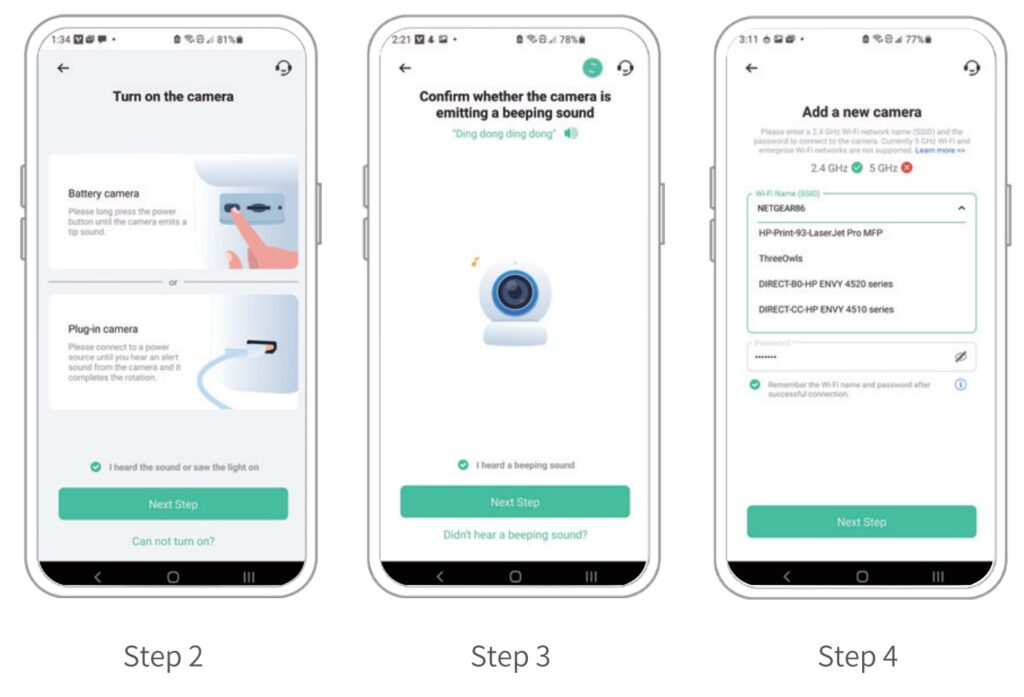
1. After pressing the camera switch for 3 seconds, the camera will turn on. The camera will emit the scanning sound “Ding Dong Ding Dong” after it is turned on (if you do not hear it, please quickly press the power button twice).
2. Tap on the “Add Camera Now” button on the App and follow the on screen instructions for the Battery Camera by long pressing the power button on the bottom of the camera. Once you hear the camera chime please tap on the circle next to “I heard the sound or saw the light on”, then tap on “Next Step”.
3. On the following page please confirm that you hear the camera emitting a beeping sound and tap on the circle next to “I heard a beeping sound” then tap on “Next Step”.
4. On the next page select your desired 2.4GHz WiFi network from the drop down menu under “WiFi Name (SSID)” then enter the password. To ensure a longer connection range, the camera only supports 2.4GHz WiFi with stronger wall penetration capability and does not currently support enterprise level authentication.
Once complete please tap on “Next Step”.
5. Point the lens of the camera at the QR code generated by the App about 7 inches away until you hear a “Ding” sound.

6. After a few moments the camera will provide a prompt sound indicating that the connection was successful. At this point the App will request that you place the camera at the location you wish to set it up at (you do not need to mount it at this point).
Please check the signal strength to ensure that it is adequate for this location then tap on “Next Step”.

Bluetooth Connected Camera
This older Bluetooth example applies only to cameras that support nearby discovery. Check the power and pairing guidance before following it.
1. Click the “Add Now” button in the VicoHome APP, press and hold the camera switch button for 3 seconds to turn on the camera, and the APP will automatically search for devices that are on and not bound. Select the device you want to connect in the search results for the next step.

2. Enter the name and password of the Wi-Fi network you want the camera to connect to.
To ensure long-distance connection, the camera only supports 2.4GHz WiFi network with stronger wall penetration capability and does not support Wi-Fi with enterprise level authentication.
Please make sure that the Wi-Fi meets the requirements, click Next after completion, and the app can try to connect the camera to the Wi-Fi.

3. After a while, the camera will play a sound indicating that the connection is successful. At this point, please set a name for the camera on the app and select the location where you want to place the camera. Click Finish to complete the pairing.
Share VicoHome camera
When you need to view the VicoHome camera with other family members or friends, you can use this function.
Only the administrator whose account is bound with the camera for the first time can share and set the camera. Other members can only view the live or playbacks of the camera.
1. Find the camera you want to share on the App homepage or camera setting page. Find the button and enter the sharing page.

2. Click ‘Invite’ , and a QR Code will be generated for sharing
3. For the members you need to share, find ted orients camera’ in the “User” page to enter the scanning page.

4. Scan the QR code on your mobile phone, and you will receive the confirmation notification after success. The sharing will be completed after you agree.

Charge the VicoHome camera
App will remind you to charge your camera when the battery is low.
Please use the Type-C cable to plug into the 5V/1.5A charging adapter to charge the camera. During charging, the camera’s indicator light is solid yellow, and when the camera is fully charged, the indicator light will turn into solid green. It will take 8 hours to fully charge the camera.
If someone shared 2 cameras with me, and then I added my own camera, can that person see my camera or it only me that can view it?
What are the best power settings for one that has a solar panel? When I set the power source to the solar panel, my camera turned off at night even though the battery was still full.
My Vicohome app is used with an Annke Whiffle doorbell. The app was automatically updated recently and since that update the doorbell has not notified a bellpush activation, but does notify a PIR detection. I have tried ‘notification’ and ‘phone call’ but neither will sound a notification on my Android phone whereas I used to before the update.
There should be a manual available!
Sorry I bought the Zeeporte CG6S cameries>
Why is the vicohome app comparable with the pixel 8 phone but not the pixel tablet?
Don’t know what happened?? Was working fine with just a solar I installed it in direct sun and then battery died hasn’t been on for quite some time
I had to redownload the camera yesterday is said it was a success downloaded come to find out it didn’t not load all the way and again it said induceded now I’m getting notifications I didn’t yesterday
There is on switch o the Q8 camera. Can’t get it to come on